Back to Contents Page
Using the Graphical User Interface
Dell™ OpenManage™ Server Update Utility 6.3 User's Guide
The Graphical User Interface (GUI) provides an interactive approach to perform comparisons and updates using Server Update Utility (SUU).
To launch the GUI, insert the Dell Server Updates DVD into the DVD drive. If SUU does not launch automatically, navigate to the Dell Server Updates DVD root directory and launch suulauncher.exe (for Windows systems) or type suu -g (for both Windows and Linux systems) in a command window.
In the GUI, you can start with a comparison of the components in your Dell system and the components in the repository. You can then proceed to upgrade, downgrade, update components, or you can browse the repository for components.
Whenever SUU inventories your system for the list of components installed, a progress bar that shows the progress of the inventory collection is displayed. After the progress bar completes 100%, SUU displays the Comparison Report.
In the Comparison Report, SUU provides the option of updating the components. In the SUU GUI, for each listed update, a link is provided. When you click the link, a browser window opens and navigates to the URL of that component on support.dell.com if you have Internet connectivity.

|
NOTE: If you do not have network connectivity, the links are not displayed on the SUU GUI. |
|
|
NOTE: On the Red Hat Enterprise Linux Server version 5 operating system, DVDs are auto-mounted with the -noexec mount option. This option does not allow you to use the autorun feature or run any executable from the DVD. You need to manually mount the DVD and then run the executables. |
|
|
NOTE: Ensure that the path from which you run SUU does not exceed 260 characters on the Windows operating system. On Linux systems, ensure that the path from which you run SUU does not exceed 4096 characters. |
Prerequisites
When you start SUU, SUU performs a prerequisites check. In the prerequisites check, SUU scans your system to determine if a hardware or software update is required. When the scan is complete, SUU displays the list of components whose prerequisite conditions are not met. The list of components may comprise hardware components, the Dell™ OpenManage™ component (software component), or hardware and software components.
If the components in your system meet the prerequisite conditions, SUU does not display the prerequisite failure messages. SUU displays the Comparison Report instead.
Software Prerequisite Failure
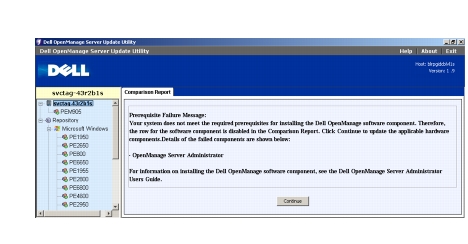
If the list of components that failed the prerequisite check comprises the Dell OpenManage component (software component), SUU displays a software prerequisite failure message as shown in Figure 2-1.
Figure 2-1. Software Prerequisite Failure Message
Fixing the Software Prerequisite Failure
Install the Dell OpenManage component version 4.3 or later before proceeding with the software upgrade. If the Dell OpenManage component is of a version earlier than 4.3, the prerequisites check fails.
To install the Dell OpenManage component, see the Dell OpenManage Server Administrator Installation Guide on the Dell Support website at support.dell.com/manuals or on the Dell Systems Management Tools and Documentation DVD.
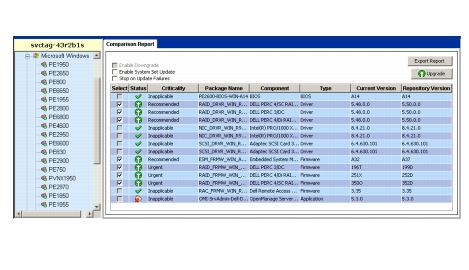
You can also click Continue to proceed with the update of hardware components, if applicable. If you click Continue, the row for the Dell OpenManage component is disabled in the Comparison Report as shown in Figure 2-2.
Figure 2-2. Dell OpenManage Component Disabled
Hardware Prerequisites Failure
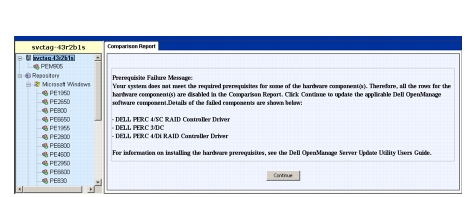
If the list of components that failed the prerequisite check comprises hardware components, SUU displays a message as shown in Figure 2-3.
Figure 2-3. Hardware Prerequisite Failure Message
Fixing the Hardware Prerequisite Failure
Install the hardware prerequisites before proceeding with the upgrade, downgrade, or update. You can also click Continue to proceed with the upgrade of the Dell OpenManage component, if applicable. To install the hardware prerequisites:
- Go to the Dell Support website at support.dell.com.
- Click the icon seen below Drivers & Downloads.
- In the Drivers and Downloads page, perform either of the following steps:
- Click Select Model under the Choose a Model section. Proceed to step 5.
- Click Enter a Tag under the Choose by Service Tag section.
- Enter the service tag of your Dell system in the Enter a service tag field
and click Go. Proceed to step 9.
- From the Select Your Product Family menu, select Servers, Storage,
Networking.
- From the Select Your Product Line menu, select PowerEdge Server.
- From the Select Your Product Model list, select your PowerEdge system,
and click Confirm.
- From the Operating System and Driver Language drop-down menus,
select the appropriate operating system and language for your system.
- From the Category drop-down menu, select Systems Management.
- From the table of results displayed, click CD ISO - PowerEdge Updates
Prerequisites v1.0 in the File Title(s) column.
- Click Download Now to save the PE Updates prereq cd.iso file on your
system. Copy this file to a system that has a CD-burning program and
create a bootable CD from the provided .iso file.
This creates the Prerequisites CD.
- Use the Prerequisites CD to bring your system up to meet prerequisite levels.
|
|
NOTE: Set the boot order in your system BIOS such that the CD drive is placed ahead of the system hard drive. |
- Boot the system that fails to meet the prerequisites with the Prerequisites
CD.
|
|
NOTE: An additional reboot may be required to complete the prerequisite update. Do not remove the CD until the information on the screen prompts you to do so. |
- When prompted, replace the Prerequisites CD with the Dell Server
Updates DVD and reboot the system.
If you click Continue, all the rows for the hardware components are disabled in the Comparison Report. If the Dell OpenManage component requires an upgrade, the corresponding row is enabled in the Comparison Report. You can proceed to upgrade the Dell OpenManage component.
Software and Hardware Prerequisites Failure
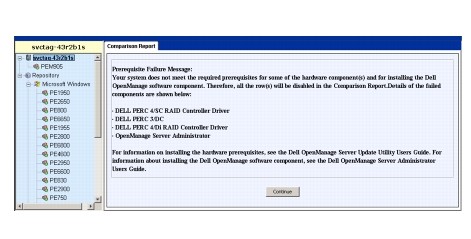
If the list of components for which the prerequisites failed, comprises the Dell OpenManage component (software component) and the hardware components, SUU displays a prerequisite failure message as shown in Figure 2-4.
Figure 2-4. Software and Hardware Prerequisite Failure Message
Fixing the Hardware and Software Prerequisite Failure
You cannot proceed with any hardware or software upgrades without installing the Dell OpenManage component or the hardware prerequisites. To install the Dell OpenManage component, see the Dell OpenManage Server Administrator Installation Guide on the Dell Support website at support.dell.com/manuals or on the Dell Systems Management Tools and Documentation DVD. To install the hardware prerequisites, perform the steps in "Hardware Prerequisites Failure".
You can click Continue to view the Comparison Report. All the rows in the Comparison Report are disabled as both, the hardware and software components, failed to meet the prerequisite conditions.
Continuing With the Upgrade, Downgrade,
or Update
Select the packages you want to upgrade. You can also downgrade newer versions of components on your system to the corresponding component version contained in the Dell Server Updates DVD. For more information about downgrading components, see "Downgrading Components".

|
CAUTION: Do not remove the Dell Server Updates DVD from the DVD drive when you are running SUU. |
|
|
NOTE: When you perform an upgrade, downgrade, or update, SUU copies all the update packages into a temporary directory on the system. The directory is <%systemdrive%>:\dell\suu in Microsoft Windows and /var/log/dell/suu in Linux. SUU deletes this temporary directory after the update/upgrade/downgrade process is complete. If a reboot is required to complete the update/upgrade/downgrade process, the directory is saved until the reboot process is complete. |
Checking the SUU Version
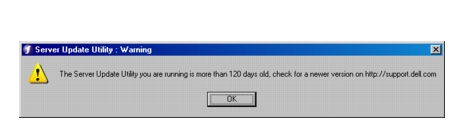
From SUU 2.0.0 onwards, when you launch SUU, a warning message is displayed if you are not using the latest SUU version and if a version newer than your current version is available.
Figure 2-5. Version Warning
|
|
NOTE: The warning message is displayed only if you are running an older version of SUU. |
You can download the latest version of SUU from the Dell Support site at support.dell.com. However, if you want to continue using your current version, click OK to continue.
Comparing System Components With the SUU
Repository Components
SUU compares the components installed on your system with the component versions available in the repository and displays the results in a Comparison Report. To view the Comparison Report, click your system's host name displayed in the left window directory tree.
|
|
NOTE: If your system's host name does not appear in the tree, either you do not have the correct user privileges, or your system does not support SUU. However, you can still browse the repository. |
The Criticality column in the Comparison Report denotes the importance of applying the update. There are four levels of criticality: Urgent, Recommended, Optional, and Inapplicable. These levels are described in Table 2-1.
Table 2-1. Criticality Levels
|
Criticality Level
|
Status
|
|---|
Urgent
| It is highly recommended to apply this update as soon as possible. The update contains changes to improve the reliability and availability of your Dell system.
|
Recommended
| It is recommended to apply this update during your next scheduled update cycle. The update contains feature enhancements or changes that help keep your system software current and compatible with other system modules (firmware, BIOS, drivers, and software).
|
Optional
| It is recommended that you review the specifics about the update to determine if it applies to your system. The update contains changes that impact only certain configurations, or provides new features that may/may not apply to your environment.
|
Inapplicable
| This update is not applicable on your system. The component version on your system equals the repository version and hence, no update is required.
|
For every component on your system that is current with the version in the SUU repository, SUU displays a green checkmark icon  .
For system components that are newer than the repository version components, SUU automatically enables the Enable Downgrade check box if the Comparison Report lists only the components to be downgraded and no components to be upgraded.
If the Comparison Report lists both upgrade and downgrade components, you must select the components to be downgraded, select the Enable Downgrade check box, and click the Downgrade button to downgrade these system components to the repository versions. For information on downgrading components, see "Downgrading Components".
SUU displays the Inapplicable icon if the component version on your system equals the repository version. In that case, the update is not applicable on your system.
If the upgrade components are available, SUU enables the Upgrade button on the upper right corner of the Comparison Report (see Figure 2-7). For information on upgrading components, see "Upgrading Components".
|
|
NOTE: You cannot use SUU to update any firmware or device driver installed on your system that does not match a comparable repository component. You must manually update components installed on your system that do not compare with the repository. |
If the Upgrade, Downgrade, or Update button is disabled, one of the following may apply:
- The components on your system are current and do not need to be upgraded.
- The prerequisite check failed. See "Prerequisites" for more information.
|
|
NOTE: If the Comparison Report displays the same package name for more than one component in your system, and these components require an Upgrade, it means that a single execution of the package is sufficient to update all the components. Therefore, in the GUI, when you select/deselect one component, all other components that have the same package name are selected/deselected by default. |
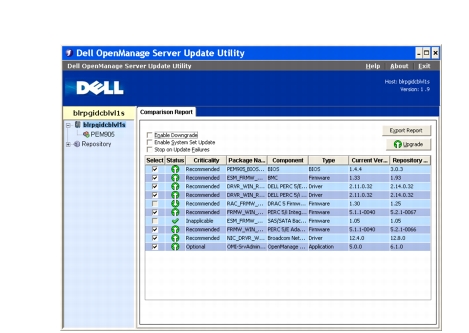
Figure 2-6. SUU Comparison Report
In this figure, the firmware, driver, and the Dell OpenManage components have been selected for an upgrade as the repository versions are newer than the current versions installed on the system.
One of the firmware components (Dell Remote Access Controller 5 Firmware) is recommended for a downgrade as the currently installed version is newer than the version in the repository.
Upgrading Components
To upgrade components from the repository:
- Select the components that you want to upgrade.
- Click the Upgrade button to apply the components that you have selected
for your system. A Confirm Update dialog box prompts for confirmation
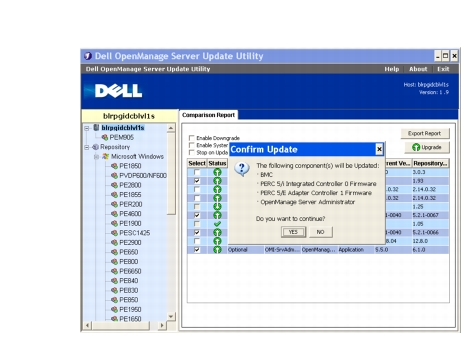
to upgrade the listed components as shown in Figure 2-7.
Figure 2-7. Upgrade Confirmation
- Click Yes to continue or No to cancel.
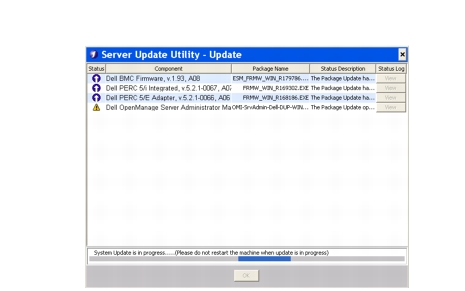
While upgrading the components, SUU displays an update report as shown in Figure 2-8.
Figure 2-8. Upgrade Progress
- After the upgrade is completed, SUU displays an Update Complete dialog
box. Click OK to complete the upgrade.
The status of the upgrade is reflected in the Comparison Report.
Downgrading Components
To downgrade components from the repository:
- Select the Enable Downgrade check box.
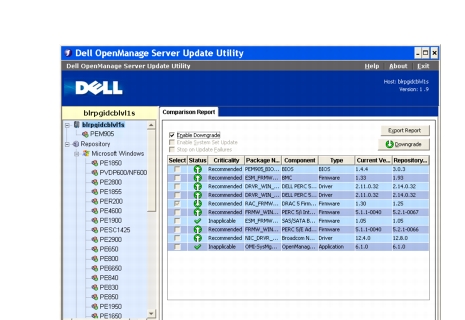
SUU disables the Enable System Set Update check box and selects only those components that are newer than the repository version components and can be downgraded as shown in Figure 2-9. This is an automatic process and you cannot select/deselect individual packages.
Figure 2-9. Downgrade
- Click the Downgrade button to start the downgrade. A Confirm Update
dialog box prompts for confirmation to downgrade the listed components.
- Click Yes to continue or No to cancel.
While downgrading the components, SUU displays a progress report.
- After the downgrade is completed, SUU displays an Update Complete
dialog box. Click OK to complete the downgrade.
The status of the downgrade is reflected in the Comparison Report.
Updating Multiple Systems on the Network
You can run SUU from a network location and update components on multiple systems. This feature is called the network share support feature.
|
|
NOTE: You must be connected to the network to use the network share support feature. |
To run SUU from a network location:
- Access the system on the network on which SUU resides.
- Launch the SUU GUI to display the components to be updated in the
Comparison Report.
- You can choose to update all the components in a single session by
selecting the Enable System Set Update check box or you can choose to
perform only an upgrade or a downgrade. For more information on the
System Set Update feature, see "Upgrading and Downgrading
Components in a Single Session".
- Click the Update, Upgrade, or Downgrade button. A dialog box prompts
for confirmation to update, upgrade, or downgrade the listed components.
- Click Yes to continue or No to cancel.
If you click Yes, SUU displays the Update dialog box that shows the progress of the update/upgrade/downgrade.
- Click OK when the update/upgrade/downgrade is completed.
The updates are reflected in the Comparison Report.
Ensure that the name of your report or the path in which you save the report does not exceed 260 characters if you are running SUU on Windows. On Linux systems, ensure that the name of your report does not exceed 255 characters or the path in which you save the report does not exceed 4096 characters.
Recommended Practices When Running SUU From a Network Location
- The network location must be secure and be accessed only by an administrator or super-user who has read, write, and execute privileges. It is also strongly recommended that the network location be unmapped or unmounted after SUU has completed execution.
- If you cannot update components when running SUU from a network location, try running SUU on your system. If you can run SUU successfully on your system, it indicates a problem with the network connection.
- Running multiple instances of SUU from a network location, creates multiple copies of Java Runtime Environment (JRE) on your system.
Upgrading and Downgrading Components in a
Single Session
You can upgrade and downgrade components at the same time using the System Set Update feature. This saves you the time and effort of upgrading or downgrading components one at a time.
To upgrade and downgrade components at the same time:
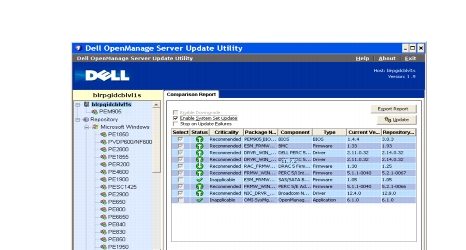
- Select the Enable System Set Update check box. When you select this
check box, SUU disables the Enable Downgrade check box and the
Upgrade button changes to the Update button as shown in Figure 2-10.
Figure 2-10. Enable Downgrade Check Box Disabled
All the components that can be updated are selected in the Comparison Report.
|
|
NOTE: You cannot deselect individual components when you select the Enable System Set Update check box. |
- Click the Update button. SUU displays a Confirm Update dialog box that
displays a list of components to be updated.
- Click Yes to proceed with the update or No to cancel the update.
If you click Yes, SUU displays the Update dialog box that shows the progress of the update.
- Click OK when the update is completed.
The updates are reflected in the Comparison Report.
|
|
NOTE: Do not click Update in SUU when the Comparison Report is displayed and an application other than the SUU is updating your system components. In such a scenario, restart SUU and then perform an update through SUU. |
|
|
NOTE: The update status of some components will be effective only after you restart your system. |
Upgrading Dell OpenManage Service Packs
From SUU version 1.5 onwards, you can upgrade Dell OpenManage service packs. The procedure to upgrade Dell OpenManage service packs is the same as that to upgrade the hardware components.
To upgrade Dell OpenManage service packs:
- Select the Dell OpenManage component.
- Click the Upgrade button. SUU displays a Confirm Update dialog box.
- Click Yes to proceed with the upgrade or No to cancel the upgrade.
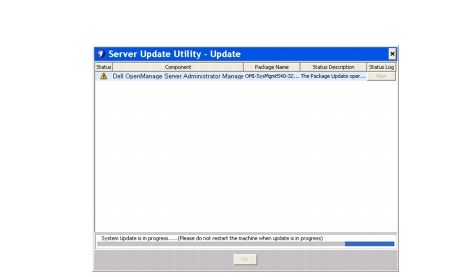
If you click Yes, SUU displays the Update dialog box that shows the progress of the upgrade as shown in Figure 2-11.
Figure 2-11. Dell OpenManage Upgrade Progress
- Click OK in the Update Complete dialog box to complete the upgrade.
- Click OK in the Update dialog box.
Dell OpenManage service packs have been upgraded.
Upgrading Dell Unified Server Configurator
You can upgrade Dell Unified Server Configurator from an earlier installed version to a newer version. The procedure to upgrade Dell Unified Server Configurator is the same as that to upgrade the hardware components.
To upgrade Dell Unified Server Configurator:
- Select the Dell Unified Server Configurator component.
- Click the Upgrade button. SUU displays a Confirm Update dialog box.
- Click Yes to proceed with the upgrade or No to cancel the upgrade.
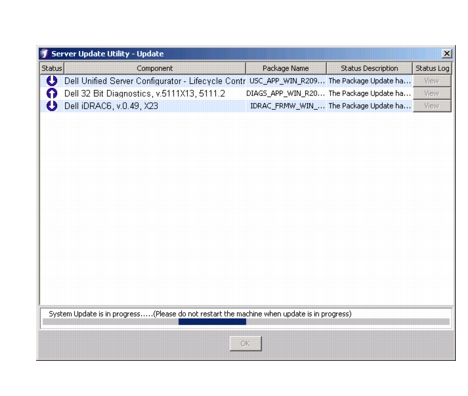
If you click Yes, SUU displays the Update dialog box that shows the progress of the upgrade as shown in Figure 2-12.
Figure 2-12. Dell Unified Server Configurator Upgrade Process
- Click OK in the Update Complete dialog box to complete the upgrade.
- Click OK in the Update dialog box.
The Dell Unified Server Configurator component is upgraded.
Continuing on Update Failures
You can choose whether to continue or stop the update if the package that you have selected for an update encounters an update failure.
To continue or stop updates:
- Select the components you want to update.
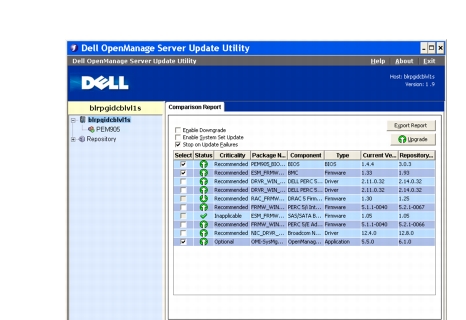
- Select the Stop on Update Failures check box as shown in Figure 2-13.
Figure 2-13. Stop on Update Failures Option Selected
|
|
NOTE: The Stop on Update Failures check box is enabled only if you have selected more than one component for an update. |
- Click Upgrade.
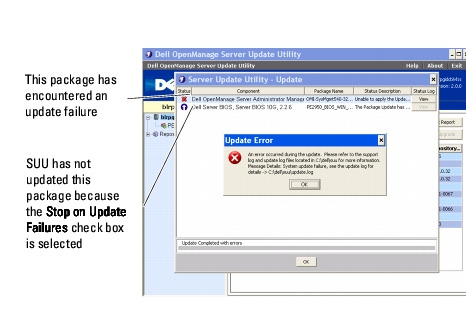
SUU starts the upgrade of the components selected for upgrade. If SUU encounters a failure while updating the first component, SUU does not continue updating the other components. It displays the failure icon ( ) in the Update dialog box indicating that the update has failed. SUU also displays the
 icon in the Update dialog box denoting that the other components selected for update have not been updated.
After the update process, SUU displays an Update Error dialog box stating an update error as shown in Figure 2-14.
Figure 2-14. Failure of Update
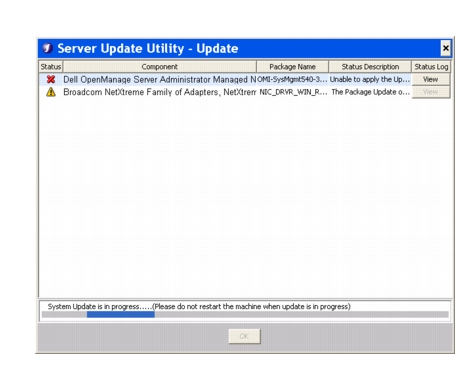
If you do not select the Stop on Update Failures check box, and SUU encounters an update failure, then SUU continues updating the other components as shown in Figure 2-15.
Figure 2-15. Continue on Update Progress
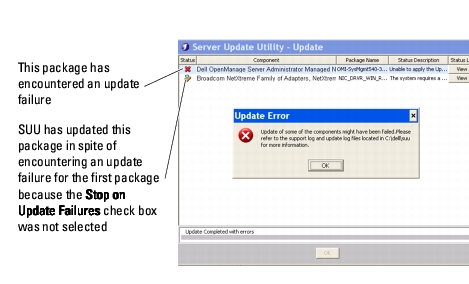
In Figure 2-15, the first component was not updated because of an update failure. However, SUU has updated the second component because the Stop on Update Failures check box was not selected.
SUU then displays an Update dialog box that shows that the first component has not been updated but the second component has been updated. SUU also displays an Update Error dialog box that states an update failure as shown in Figure 2-16.
Figure 2-16. Continue on Update Error
- Click OK in the Update Error dialog box.
SUU has updated/stopped the updates of components depending on whether or not you selected the Stop on Update Failures check box.
Upgrade/Downgrade/Update Messages
When the upgrade/downgrade/update operation completes, you may get a message prompting you to restart the system to complete the upgrade/downgrade/update process. If so, leave the Dell Server Updates DVD in the DVD drive during the restart.
|
|
NOTE: If you have selected a BIOS package, SUU first installs other selected packages and installs BIOS package at the end. The changes to the BIOS do not take effect until you restart your system. SUU displays a message prompting you to restart your system. See "Logging Events" for more information. |
|
|
NOTE: When you restart the system, log in using the same user account or user privileges that you used during the previous boot. |
After you log into the operating system, open a command window and type suu -g (for both Windows and Linux systems), or suulauncher.exe (for Windows systems) to restart the SUU GUI.
Exporting the Comparison Report
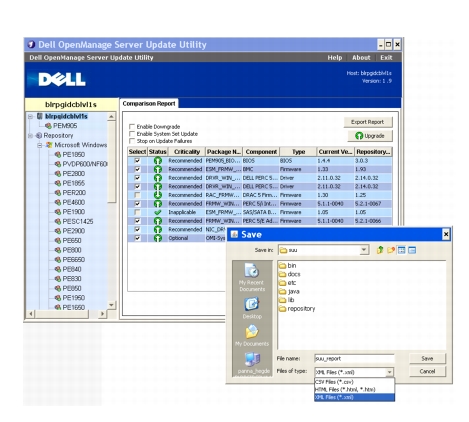
You can export the Comparison Report and save it on your system as a CSV, HTML, or XML file.
To export the Comparison Report, click Export Report.
Figure 2-17. Export Report
You can save the report in a .csv, .html, or .xml format on your system.
|
|
NOTE: Ensure that the name of your report or the path in which you save the report does not exceed 260 characters if you are running SUU on Windows. On Linux systems, ensure that the name of your report does not exceed 255 characters or the path in which you save the report does not exceed 4096 characters. |
Viewing Package and Bundle Details
In SUU, you can view the details of the packages or bundles displayed in the repository.
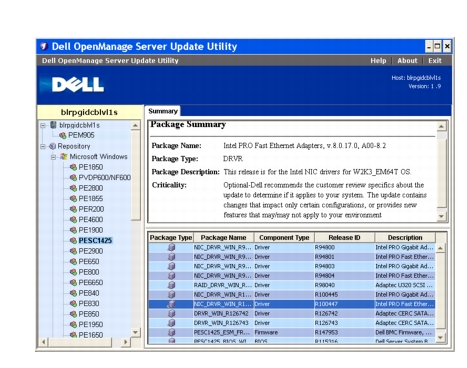
To view the details of a package, select a package in the repository table. The details are displayed in the Package Summary section as shown in Figure 2-18. You can also use the up-arrow and down-arrow keys to view the details of a package.
Figure 2-18. Package Details of a Selected Package
You can also view the details of a bundle.
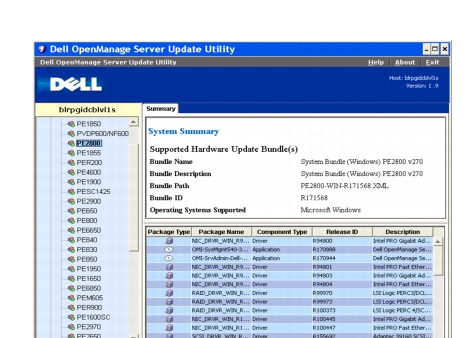
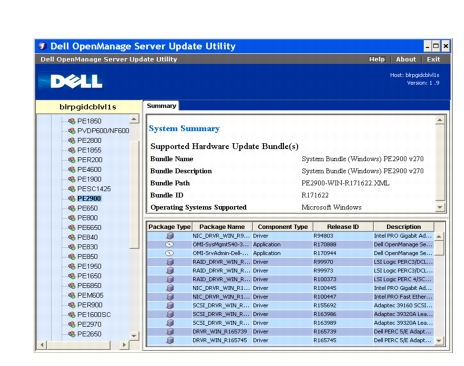
To view the bundle-level details, select any bundle under the repository tree on the left-hand side pane of the SUU GUI. SUU displays the information for the selected bundle in the System Summary section and the packages specific to this bundle in the repository table as shown in Figure 2-19.
Hardware packages are denoted by the  icon and software packages are denoted by the
 icon.
|
|
NOTE: You can use the <Tab> key to navigate through the Comparison Report table or the package/bundle-level details table and the <Ctrl><Tab> keys to navigate from the Comparison Report table or the package/bundle-level details table to the tree on the left-hand side of the SUU GUI. |
Figure 2-19. Bundle-Level Details
Sorting Columns
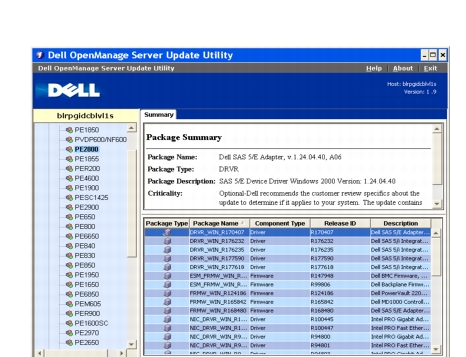
You can sort the columns in the Comparison Report and the repository table by clicking the column names. SUU sorts the columns in the ascending or descending order. The  icon indicates that the column has been sorted in the ascending order and the
 icon indicates that the column has been sorted in the descending order.
Figure 2-20 shows the Package Name column sorted in the ascending order.
Figure 2-20. Package Names Sorted
Browsing the Repository
To browse through the repository:
- Double-click the Repository icon on the left side of the application interface.
- Select your operating system. The Windows or Linux icon displays
depending on your operating system. A list of supported systems is
displayed.
- Click a system name to view the list of all available updates for that system.
Figure 2-21 shows all available components in the repository.
Figure 2-21. Repository
You can view the repository for all the systems that support Windows and Linux. See the DellSoftwareBundleReport.html in the repository directory for details on the contents of the repository.
Logging Events
SUU creates two event logs: update.log and support.log. The update log shows the status of each component updated. The support log contains trace and debug data and is only used by Dell Support.
The default location for the SUU logs in Microsoft Windows is <%systemdrive%>:\dell\suu. The default location for the Linux logs is /var/log/dell/suu.
|
|
NOTE: You can use the suu -d command in the CLI to change the default location of the SUU logs. |
|
|
NOTE: The directory that you specify for the event logs must exist. SUU does not create the directory. |
Back to Contents Page
 Continuing With the Upgrade, Downgrade,
or Update