 Changing the Default Location of Logs
Dell™ OpenManage™ Server Update Utility 2.0.0 User's Guide
Changing the Default Location of Logs
Viewing the Inventory Progress
The Command Line Interface (CLI) in the Server Update Utility (SUU) allows you to run commands to perform comparisons and updates.
To run SUU from the CLI, you must be in the Dell Server Updates DVD root directory. If you are running SUU on a network share, copy the Dell Server Updates DVD contents to a shared directory and run the CLI from the shared directory.
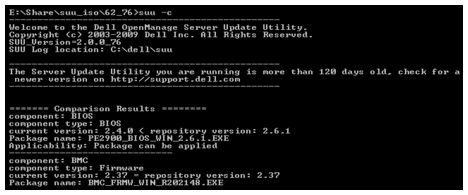
When you run SUU, a warning message is displayed if you are not using the latest SUU version and if an SUU version newer than your current version is available.

|
NOTE: You will see the warning message only if you are running an older version of the SUU. |
You can download an updated version of SUU from the Dell Support site at support.dell.com.
All CLI commands begin with the suu string followed by a space and then the short or long form of the command. If you type suu -? or suu -help or suu -h, the command line interface displays the syntax for SUU CLI commands:
Usage: suu [<command>] [-d | -directory <directory_name>]
Table 3-1 lists the SUU commands. To run a CLI command, open a command window and type the appropriate CLI command syntax at the command prompt.
Table 3-1. Server Update Utility CLI Commands
The default location for SUU event logs in Windows is <%systemdrive%>:\dell\suu. The default location for the logs in Linux is /var/log/dell/suu.
When you type suu with a command and a directory path, you can change the default location for logs for that session of SUU. To change the directory location for logs for a session of SUU, type:
suu <command> -directory <path>
For example, if you type suu -u -directory c:\tmp, SUU runs an update on the system and redirects logs to c:\tmp instead of c:\dell\suu.
To run the SUU comparison application, type suu -c. A welcome screen is displayed. While the comparison is in progress, the following message accompanied by a spinning bar is displayed:
| finding applicable system update set
When complete, the Comparison Report displays as in the following example:
========Comparison Results========
Component: BIOS
Component type: BIOS
current version: A11 < repository version A12
package name: PE1600SC-BIOS-WIN-Al2.exe
The Comparison Report provides a listing of the installed system components and the comparable SUU repository components. The comparison of the version levels is indicated with the arithmetic symbols > (greater than), < (less than), and = (equal to). The report also lists the available Dell™ Update Package to update the component.
To update your system with the selected components, type suu -u. All components that are not up-to-date with the components in the repository are upgraded. System components with versions newer than the repository version are downgraded to the repository level versions.
|
|
NOTE: The update command from the CLI can be used for both an upgrade and a downgrade. |
To view the progress for your update, open another command shell and type suu -p.
A progress report similar to the following appears:
======update progress======
Package name : RAC_FRMW_WIN_R104824.EXE
Status : Update Successful
---------------------------------------
Package name: PE1750-BIOS-WIN-A11.exe
Status : Update is in progress
To view the inventory progress when SUU is collecting information about the components on your system, open another command shell and type suu -iprog.
A progress report similar to the following appears:
====== system inventory progress ======
no progress available
====== system inventory progress ======
54% Complete
You can choose to continue or stop further updates if the selected update packages encounter an update failure. To stop updates, type suu -u -s. If an update failure is encountered, SUU stops further package updates.
If you do not specify any parameter during the update, that is, if you type suu -u, SUU continues to update other packages even if it encounters an update failure.