 Applications > Using Dashboard > Working with the Siebel Solution > Using the SARM - User Trace Breakdown Diagnostic Tool > Results - Analysis Page > Sessions
Sessions
Click the Sessions tab to open the sessions table.

The default view shows all the sessions for the user and the site.
The page displays the following information for each session:
- Session Id. The ID of the session. You can drill the session ID to display information about the session requests (for details, see Requests).
- Date. The timestamp of the session.
- Avg. Request Time (sec). The average time the request spent in the session.
- Layer Breakdown. The breakdown of the layer into its areas relative to the time spent by the session in each area: Web Server, Application Server, Database, and Network. Tooltips display the average time the session spent in each area.
- No. of Requests. The number of requests that ran in the session.
- Max Request Time (sec). The maximum time spent by a request in the session.
- Task ID. The ID of the task the request belongs to.
- Application Server. The name of the application server on which the session is running.
- Web Server. The name of the web server on which the session is running.
Note: Scroll to the right to see the rest of the information.
Note: The BPM Time is displayed only when the SARM User Session Trace breakdown diagnostics has been run after invoking a BPM script monitoring the Siebel Application. Some additional tuning of Siebel Application\Web Server environment variables is required. This is due to the fact that the flush ratio of SARM files is approximately 5 times slower in the Web Server than in the Application Server, and therefore running SARM with the default value of SARM_MaxFileSize variable may not be enough to have the SARM user trace breakdown diagnostic tool return data (contact Mercury Customer Support for additional information).
You can select one or more sessions and click Summary to display a summary chart for the sessions you selected.
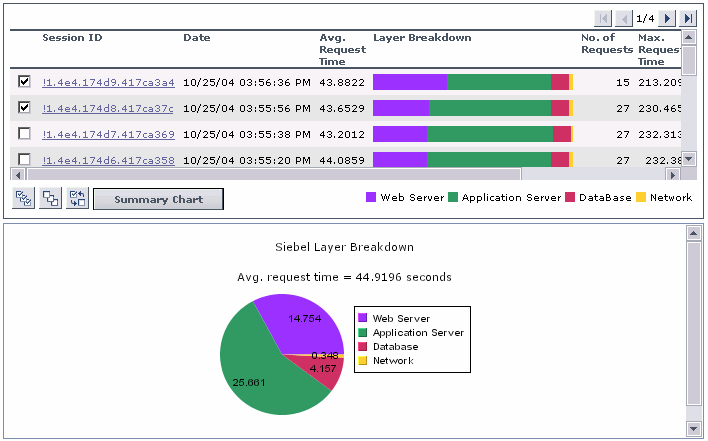
Use the Select all, Invert selection, and Select none buttons (shown below) to help you select the sessions.

For more details on the summary chart, see Summary.