 Administration > CMDB Administration > Source Manager Administration > Custom Source Adapter Details > XML File
XML File
The XML File source retrieves topology information from an XML file produced by an external system that you define. The XML file contains the definition of CIs. This source includes a predefined generic adapter.
For more details about the source's template, see XML File Template.
XML File Parameters
The source parameters in the New Source or Edit Source dialog box are:
- Type - the name of the type of source: XML File.
- Name - the name of the new source. By default: XML File. Note that this must be a unique name.
- Path - the path to the location of the user-defined XML file. The file describes the data topology.
- Sync interval - the interval (in minutes) between each automatic synchronization of the adapter with the external system. The default value is 60 minutes.
- Enable - select the check box to enable communication between the adapter and the external system.
An XML File example is provided in
<Mercury Business Availability Center server root directory>/
CMDB/adapters/templates/xmlFile.xml.
When to Use XML File Source Adapter
Use the XML File source adapter when you want to create a hierarchy that is different from the hierarchies offered by the other source adapters.
The user with the appropriate permissions that creates an XML File source adapter must know how the data is stored in the CMDB (using the CI Type manager).
Scenario
You want to create a hierarchy and a view that includes hosts and monitors as follows:
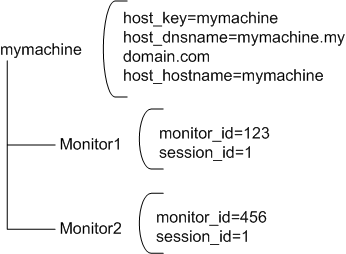
The hierarchy is as follows:
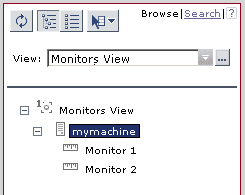
The view is as follows:

The steps to follow to create such a hierarchy are:
- Create an XML File template - for details, see Writing the XML File Template
- Create a configuration file - for details, see Writing the Configuration File
- Create the XML File source adapter - for details, see Creating an XML File Source Adapter that Monitors Hosts and Monitors
Writing the XML File Template
Use the following XML File template:
The template maps the following elements:
The monitor entity has the following selectors:
The following relationships are defined:
| <autoMappingLinks> <link type="Mercury:monitored_by" src_obj_type="host" dest_obj_type="Mercury:sitescope_monitor" weight="1" /> </autoMappingLinks> |
Writing the Configuration File
Use the following xmlFile.xml file where one host is monitored by two monitors:
The guidelines to create a configuration file are as follows:
- You must write this file in such a way that each CI type has at least one unique property in its idProperties definition (so that it is unique in the CMDB)—for more details about CI types, see CI Type Manager Administration.
- Regular properties (between the <properties> and </properties> tags) can have similar values. For example for the mymachine host, the properties are: host key, host dsname, and the name of the host as follows:
- You must specify the parent for each item, if any. It is recommended to also write the reverse relation, that is to specify the children of each item.
For example for Monitor1 the idProperties are monitor_id=123 and session_id=1:
| <entity type="monitor"> <name>Monitor 1</name> <idProperties> <property dataType="Long" key="monitor_id" value="123" /> <property dataType="Long" key="session_id" value="1" /> </idProperties> |
For example for Monitor2 the idProperties are monitor_id=456 but the
session_id is the same as for Monitor1: session_id=1:
| <entity type="monitor"> <name>Monitor 1</name> <idProperties> <property dataType="Long" key="monitor_id" value="456" /> <property dataType="Long" key="session_id" value="1" /> </idProperties> |
For example, you specify that the parent of entity Monitor1 is: mymachine (host_key=mymachine):
| <entity type="monitor"> <name>Monitor 1</name> ... <parents> <idProperties> <property dataType="String" key="host_key" value="mymachine" /> </idProperties> </parents> |
You must also specify that the entity machine has the following children: Monitor1 (monitor_id=123) and Monitor2 (monitor_id=456):
You must do the same for entity Monitor2.
Creating an XML File Source Adapter that Monitors Hosts and Monitors
To create an XML File source adapter that monitors hosts and monitors you must modify the default source adapter template, save the configuration file in the appropriate location, and you must create a view.
To create an XML File source adapter that monitors hosts and monitors:
- In the Source Manager tab, click the New Source button to open the New Source window and select the XML File source adapter in the Type box.
- Click Edit Template. The window expands to display the adapter template in the Template box.
- Copy the first part of the XML File template provided in the example above from <autoMappingEntities> to </autoMappingEntities> (tags included) and insert it in the XML File template between <autoMappingEntities bac-version="BAC 6.0"> and </autoMappingEntities> and erase the rest of the file.
- Copy the second part of the XML File template provided in the example above from <autoMappingLinks> to </autoMappingLinks> (tags included) and insert it in the XML File template after </autoMappingEntities> (included).
- Create a pattern specific for the structure that is used in the xmlFile.xml file - for details, see Working with Pattern Views in View Manager Administration.
Note: Use the window scrollbar and the Template box scrollbar to display the areas of the template you want to modify or highlight the text in the Template box, copy it to a text editor, make the appropriate changes and copy the text back into the Template box.
Save the xmlFile.xml file (shown above) in a specific location; for example:
<Mercury Business Availability Center server root directory>/
CMDB/adapters/templates/xmlFile.xml and enter the path in the Path box in the source adapter definition.