 Administration > CMDB Administration > Source Manager Administration > Default Source Adapter Description > SiteScope
SiteScope
The SiteScope source retrieves system information from a SiteScope system, and builds a hierarchy that includes the machines, SiteScope groups, monitors, and measurements.
Note that:
- You can define logging options in SiteScope to determine which monitor and measurement data is sent to the Mercury Business Availability Center database. For example, if SiteScope is sending only the monitor level, the monitors will be set as monitors in the CMDB. For more information, see Registering SiteScope to Mercury Business Availability Center in SiteScope Administration.
- When you attach SiteScope to Mercury Business Availability Center for the first time, and you have defined monitors for SiteScope, the status of each SiteScope monitor is automatically changed to Do not report to Mercury Business Availability Center. This option is used when you do not want the SiteScope monitor and measurements for the subject monitor to be transferred to Mercury Business Availability Center. Select another logging option for the monitors whose information you need. For details on this option, see Common Monitor Settings in Configuring SiteScope Monitors.
- Once a SiteScope profile is defined in the Monitors tab (Admin > Monitors) and a SiteScope monitor is connected to it, the SiteScope configuration remains in the CMDB until the SiteScope profile is deleted and the next synchronization has been performed (manually or automatically, by default, every 60 minutes) - for details about synchronizing the SiteScope profile, see Synchronizing Profile Data in Working with Monitor Administration.
- When using Dashboard to view SiteScope data, note that the default decay (timeout) period for a CI in Dashboard is 15 minutes. If you have a SiteScope monitor with a schedule longer than 15 minutes, the corresponding CIs in Dashboard will change to decay status until the SiteScope monitor runs again and updates Mercury Business Availability Center.
- set run schedules for the monitors in SiteScope or in Monitor Administration for less than 15 minutes in the Frequency parameter - for details, see Frequency in Monitor Administration or in SiteScope Common Monitor Settings in Configuring SiteScope Monitors
- for each SiteScope item in Dashboard, change the decay timeout period parameter to a value greater than the schedule for the SiteScope monitor by modifying the No Data Timeout parameter for the appropriate rule - for details, see Dashboard Business Rules Details in Application Administration
- in the rule parameters for the SiteScope source adapter template in Dashboard, change the decay timeout parameter to a value greater than the schedules used for the SiteScope monitors - for details, see Changing the Decay Timeout Value in Source Manager Administration
To avoid this, you can do one of the following:
You can also set the decay timeout parameter to -1, meaning no decay timeout. This is the required value if the SiteScope monitor is event based (meaning that data is sent to the Mercury Business Availability Center Bus only when the monitor reports a change in status), but is not recommended for monitors sending data according to a schedule.
For more details about the source adapter template, see SiteScope Template.
This section includes the following topics:
SiteScope Source Parameters
The source parameters in the New Source or Edit Source dialog box are:
- Type - the name of the type of source: SiteScope.
- Name - the name of the source. By default: SiteScope. Note that this must be a unique name.
- Server URL - the URL for the Centers Server.
- Exclude profiles - the list of SiteScope profiles you want to exclude from display in the CMDB. Use commas as delimiters.
- Use the Include measurements and the Include machines to create different hierarchies:
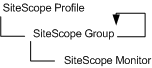
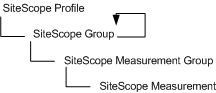
- Include measurements - select the check box to include the measurement level for SiteScope monitors in the hierarchy. Default is check box not selected. If the check box is not selected (default setting), the lowest hierarchy level included for SiteScope configuration is the monitor level.
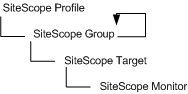
- Include machines - Select the check box to include the machine level (the monitor target) in the hierarchy. Default is check box not selected.
- Sync interval - the interval (in minutes) between each automatic synchronization of the adapter with the external system. The default value is 60 minutes.
- Enable - select the check box to enable communication between the adapter and the external system.
Because the CMDB may include a large number of SiteScope profiles, you might want to restrict the display by excluding some of those profiles.
Note: You cannot exclude a SiteScope profile whose name includes a comma (,).
For details, see SiteScope Hierarchies.
Note: Including the measurement level greatly increases the number of CIs included in the views using the SiteScope source. This can mean delays while a view hierarchy is rebuilt after a change is made to the configuration in SiteScope, and may cause other performance issues in Mercury Business Availability Center.
SiteScope Hierarchies
Depending on the parameters you selected when defining a source or editing it, the following hierarchies are displayed.
|
Include measurements
|
Include machines
|
Hierarchy
|
|---|---|---|
|
Not selected
|
Not selected
|
 |
|
Not selected
|
Selected
|
 |
|
Selected
|
Not selected
|
 |
|
Selected
|
Selected
|
 |
The arrow

that curves back indicates that the hierarchy element is recursive; the CI type is the child of the level above in the hierarchy, but it can also be a child of the CI type itself. For example, a SiteScope Group CI type is the child of a SiteScope Profile CI type, but can also be the child of a SiteScope Group CI type too.