 Administration > Data Collector Administration > SiteScope Administration > Installing SiteScope > Uninstalling SiteScope > Uninstalling SiteScope for Windows Platforms
Uninstalling SiteScope for Windows Platforms
For SiteScope running on Windows platforms, the SiteScope installation includes a program to uninstall the SiteScope software from your computer.
Note: Uninstalling SiteScope does not delete the temporary setup files and archives created during the installation process. These temporary files occupy several megabytes of disk space. By default, these files are created in the C:\temp\SiteScope_8.1.0.0\ directory tree. You should delete these files manually.
To uninstall SiteScope for Windows platforms:
- Choose Start > Settings > Control Panel > Administrative Tools > Services.
- Select the SiteScope service in the list of services. If SiteScope is running, right-click to display the action menu and select Stop. Wait until the Status of the service indicates that it is stopped, and close the Services window.
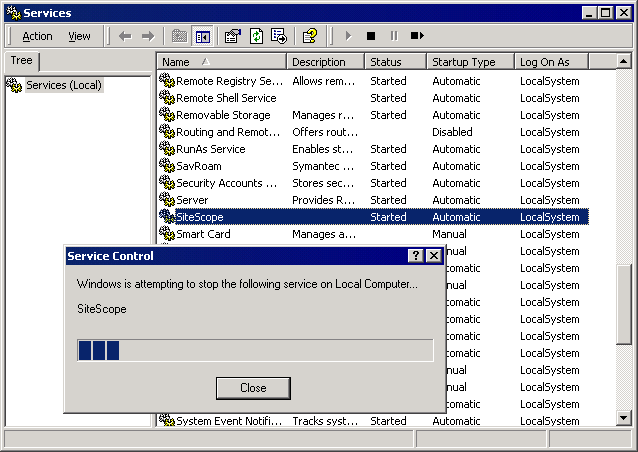
- Choose Start > Settings > Control Panel > Add/Remove Programs. Select SiteScope from the list of currently installed programs.
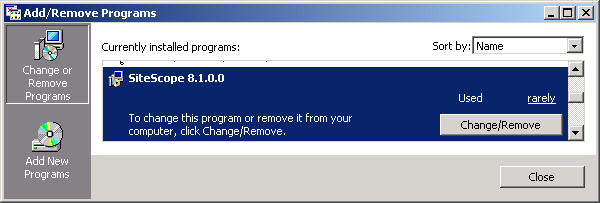
- Click to remove the program. A confirmation screen opens.
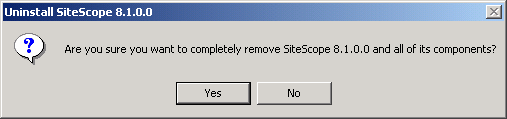
- Click Yes to confirm the deletion of SiteScope from the server. The Remove Programs screen opens and the uninstall process starts. When the uninstall process is completed, close the Remove Programs screen.
Note: Uninstalling SiteScope does not uninstall the Java JVM or other client applications used to support SiteScope monitors. It does not delete SiteScope data log files, saved reports, or monitor configuration files. To remove SiteScope data logs, reports, and other files, you must manually delete the SiteScope installation directory and its subdirectories.
Note: Beginning with SiteScope 8.0, it is normally be necessary to restart the server to complete the uninstall process. Failure to restart the server may lead to unexpected problems for other applications.