 Administration > Data Collector Administration > SiteScope Administration > Installing SiteScope > Installing SiteScope for Windows > Installing SiteScope on Windows Platforms
Installing SiteScope on Windows Platforms
Use the following steps to install SiteScope on Windows 2000 or 2003.
To install SiteScope on Windows platforms:
- Download the SiteScope setup file or insert the CD-ROM containing the SiteScope software into the CD drive on the machine where you want to install SiteScope.
- Run the SiteScope setup program. A location selection screen opens.
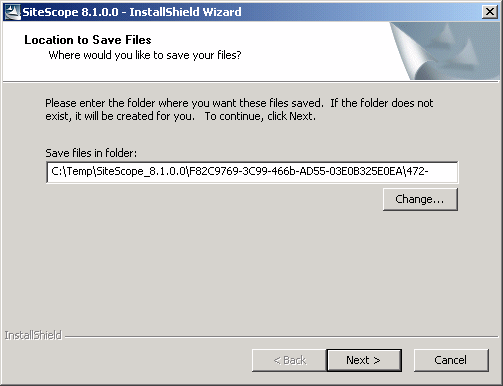
- Click Next to accept the default temporary folder location and continue with the installation. Alternatively, click the Change button to change the location for the temporary files and then click Next to continue with the installation. Files are automatically extracted. The License Agreement screen opens.

- Read the SiteScope License Agreement.
- Click Yes to confirm that you accept the Software License Agreement. The Administrator E-mail Address screen opens.

- Enter the e-mail address that SiteScope should use to send e-mail alerts to the SiteScope administrator.
- Click Next to continue. The Choose Destination Location screen opens.

- Select the folder where you want SiteScope to be installed. Click Next to accept the default installation path as shown. Click Browse to change the installation location. The installation path must end with a folder named SiteScope. After entering the new Destination Folder path, click Next to continue. The Select Program Folder screen opens.
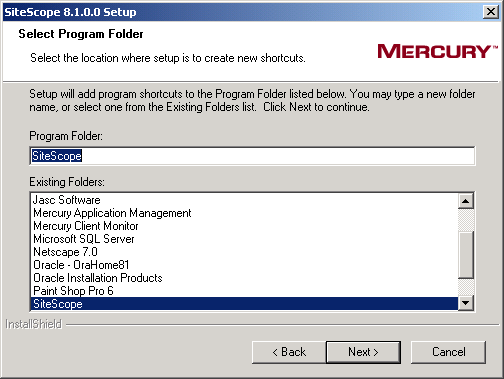
- Select the Start Menu Program folder where you want the SiteScope program shortcuts to appear. Click Next to accept the default. This will create a program folder with the name SiteScope. Select an existing program folder from the selection list provided or enter a new name in the Program Folder field. Click Next to continue. The Review Settings screen opens.
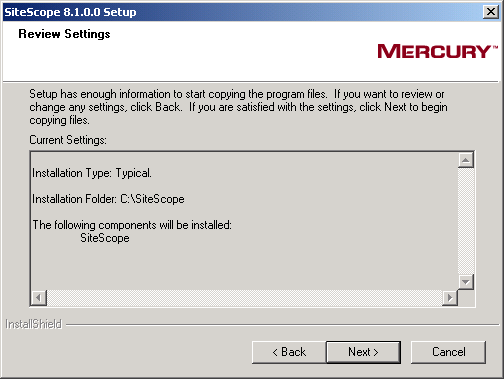
- Click Next to continue. The SiteScope installation process is started. An installation progress screen opens. When the installation process is complete, an installation completion dialogue is displayed. In many cases, you will need to restart the server where you have installed SiteScope to complete the installation.
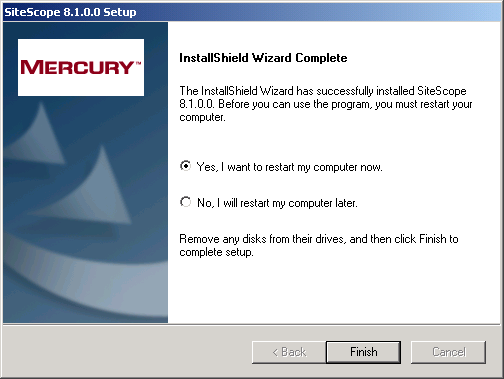
- Click Finish to complete the installation process. If the installation program determines that the server must be restarted, the restart procedure is executed. After the server is restarted and you log in, the installation wizard performs other needed setup procedures and starts the SiteScope server. The Open SiteScope page opens.

- For the latest available functionality, download and install the latest SiteScope service pack from the same location from which you installed SiteScope.
The SiteScope installation makes use of a temporary folder for extracting files used to perform the installation process.
Note: You may change the location to which the temporary files will be copied. For example, you can change the path to a more descriptive path name. You should make a note of this temporary location. After the installation is complete and SiteScope is operational, you should delete the contents of the temporary folder in order to conserve disk space.
To install SiteScope, you must accept the terms of the license agreement by clicking Yes. If you click No, the setup program will close.
After you install SiteScope, the text of the SiteScope license agreement can be found in <SiteScope root folder>\license.html.
Note: You do not need to enter an e-mail address at this point to install SiteScope. You can enter this information later using the E-mail Preferences settings in SiteScope.
Important: Before installing SiteScope 8.1, you must have SiteScope 8.0 installed. You must install SiteScope 8.1 into the same directory as SiteScope 8.0. If you are installing SiteScope 8.0, you must create a new directory for installation of SiteScope 8.0. Do not install version 8.0 into a directory used for a previous version of SiteScope.
The Open SiteScope page displays the connection address for this installation of SiteScope, as well as several other links to SiteScope documentation and support information. This is a static HTML page. On Windows platforms, a shortcut to this page is added to the SiteScope program folder in the Start menu. You can use this page to access SiteScope when the application is running.