 Administration > Data Collector Administration > SiteScope Administration > Installing SiteScope > Installing SiteScope on Solaris or Linux > Connecting to SiteScope
Connecting to SiteScope
SiteScope is designed as a Web application. This means that you view and manage SiteScope using a Web browser with access to the SiteScope server.
SiteScope is installed to answer on two ports: 8080 and 8888. If there is another service configured to use these ports, the installation process attempts to configure SiteScope to answer on another port. SiteScope updates the port number information in the file Open SiteScope.htm. This file is an HTML page that is found in the SiteScope installation directory. The following section describes how to connect to SiteScope.
Accessing SiteScope
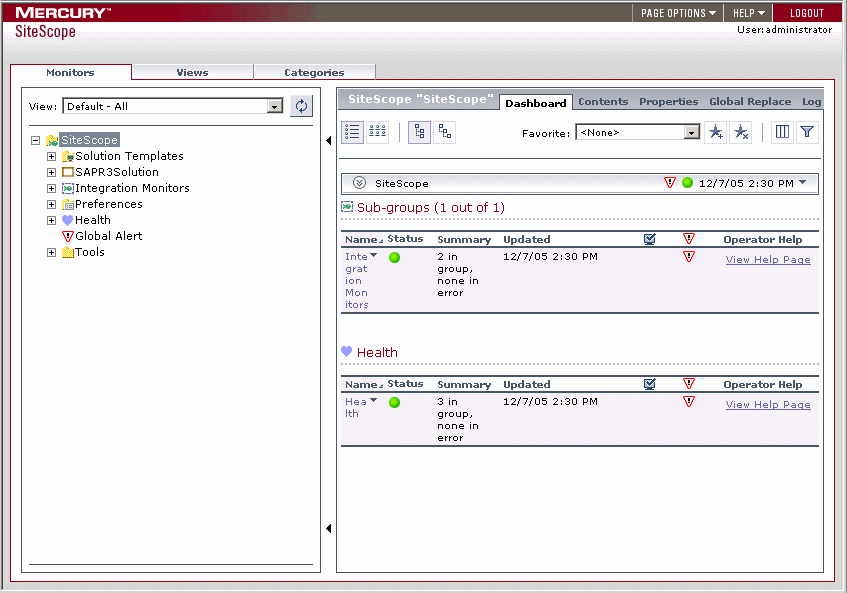
To access SiteScope using the new interface, enter the SiteScope address in a Web browser. The default address is: http://localhost:8080/SiteScope. The first time SiteScope is deployed, there is a delay for initialization of the interface elements. SiteScope opens to the Dashboard view, as shown below.
Accessing the SiteScope Classic Interface
Use the following steps to access SiteScope using the Classic interface.
To access SiteScope using the Classic interface:
- Enter the SiteScope address in a Web browser. The default address is: http://localhost:8888/SiteScope. The first time SiteScope is deployed after installation, the SiteScope Welcome screen for first-time setup opens.
- Verify the SiteScope Administrator e-mail address entered during the installation process. If you did not enter an e-mail address during the installation, enter an address now. Enter the address of the SMTP mail server that SiteScope should use to forward e-mail alerts.
- Click Continue to continue to save any changes and proceed to the next step. An update screen opens and refreshes automatically to the SiteScope First-time Setup - Getting Started screen.
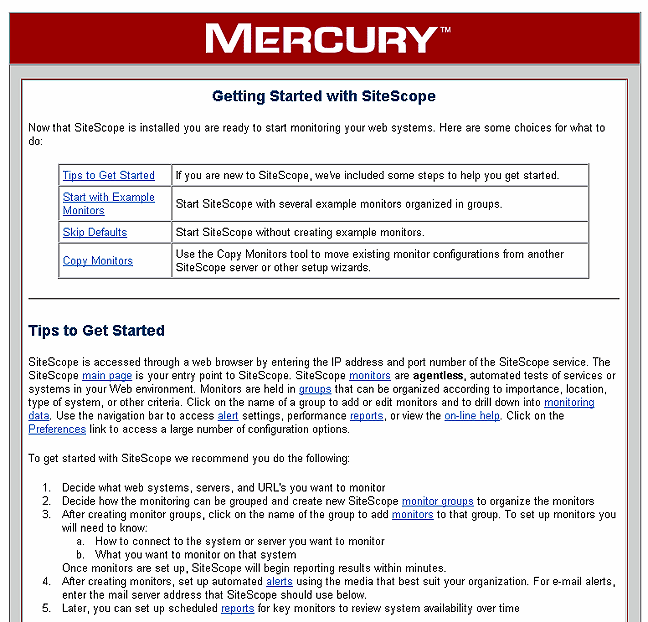
- Start Now - This option starts SiteScope and adds a number of example monitors organized into several subgroups. These example monitors are contained within a monitor group labeled Examples. You can access this group by clicking on the name of the group on the SiteScope main page.
- Skip Defaults - This option starts SiteScope without creating any example or default monitors. The SiteScope main page is displayed without any groups. Use the Create Group link to add new groups as containers for SiteScope monitors.
- Copy Monitors - This option copies monitor and alert configurations from another SiteScope installation to this installation. This is useful when moving a SiteScope installation from one server to another.
- Select the setup option you want by clicking the appropriate button. An update page opens and refreshes automatically to the SiteScope Classic main page.
If you have upgraded or moved an existing SiteScope installation, the SiteScope main panel opens. If this is a new SiteScope installation, the SiteScope First-Time Setup screen opens.

Note: SiteScope 8.0 requires a new license key. License keys from earlier versions of SiteScope are not valid to operate SiteScope 8.0. Entering an invalid license may make the product inaccessible. Contact your Mercury sales representative to convert your existing license to a SiteScope 8.0 license.
If you have received a license key or optional license for SiteScope from Mercury, you may enter the license information in the appropriate field.
Note: To use SiteScope during the free evaluation period, it is not mandatory to enter license information at this point.
If this is an installation upgrade, license information from the previous SiteScope installation is displayed. If you are changing your SiteScope license, you can enter the changes in the applicable text field.
The First-time Setup - Getting Started screen presents the following options for setting up SiteScope:
Note: To use the Copy Monitors feature, the source SiteScope installation must be running and be accessible via HTTP to the target SiteScope installation.
At this point, the SiteScope application is ready to begin monitoring system availability in your infrastructure. If you selected to Start Now with the default monitor examples, you can click on the name Examples on the console to view the contents of the Examples group.