Administration > Data Collector Administration > SiteScope Administration > Installing SiteScope > Installing SiteScope on Solaris or Linux > Installing SiteScope > Installing SiteScope Using the Installation Executable
Installing SiteScope Using the Installation Executable
You can install SiteScope on Solaris or Linux using the multi-platform InstallShield wizard.
Note: The multi-platform InstallShield wizard automatically executes if X11 libraries have already been installed on the server. If these libraries are not installed, install SiteScope in console mode. For information, see Installing SiteScope Using Console Mode
Use the following steps to install SiteScope using the installation executable.
To install SiteScope on Solaris or Linux using the multi-platform installer:
- Download the SiteScope compressed archive file on the machine where you want to install SiteScope. Alternatively, insert the CD-ROM with the SiteScope software into the CD-ROM drive.
- Copy the SiteScope compressed archive file to a disk or network location where it is accessible to the user account that is to be used to install SiteScope.
- Decompress and extract the SiteScope files from the compressed archive with the following command:
- Run the installation script found in the SiteScopeInstall directory with the following command:
- Click Next to continue. The SiteScope Software License Agreement screen opens.
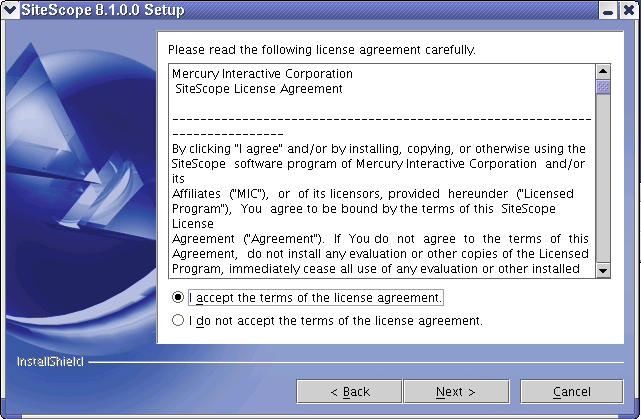
- Read the SiteScope License Agreement.
- Click I accept button to confirm that you accept the Software License Agreement and then click Next to continue. The Administrator E-mail Address screen opens.
- Enter the e-mail address that SiteScope should use to send e-mail alerts to the SiteScope administrator.

- Click Next to continue. The Installation Directory Selection screen opens.
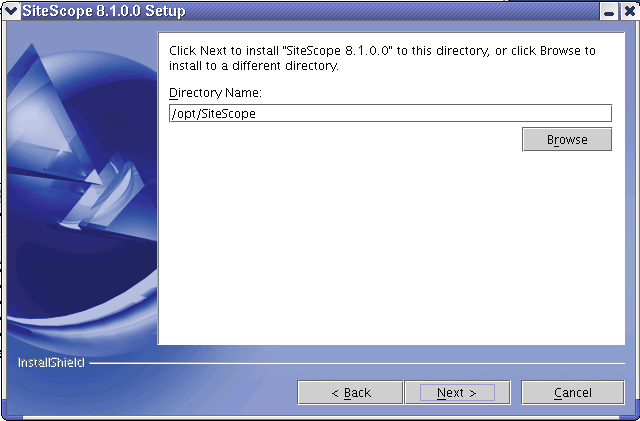
- Select the directory where you want SiteScope to be installed.
- Click Next to accept the default install path as displayed.
- Click Browse to change the installation location.
- Click Next to continue. The Summary Information screen opens.
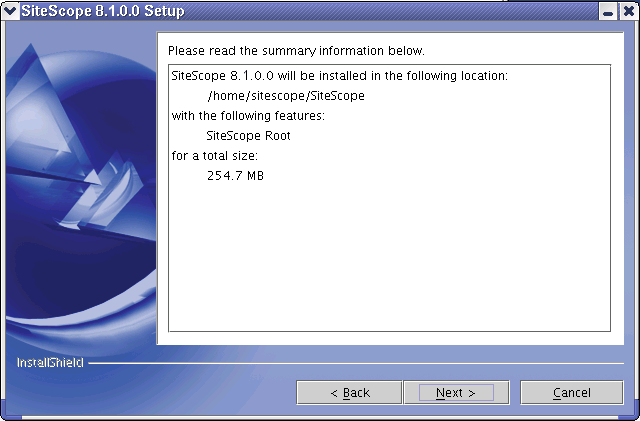
- Click Next to accept the installation settings. The SiteScope installation process starts. An installation progress screen opens. When the installation process is complete, the SiteScope process starts and the Connect to SiteScope screen opens.
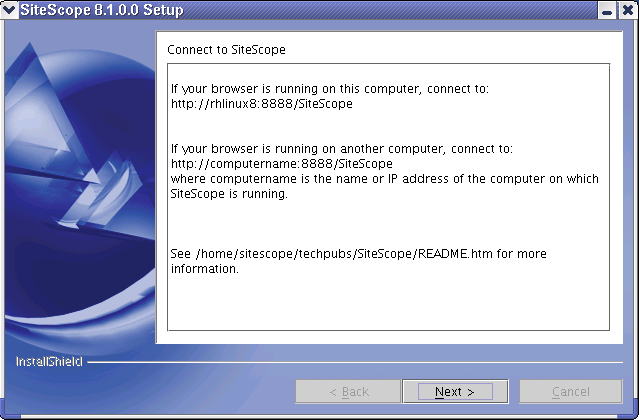
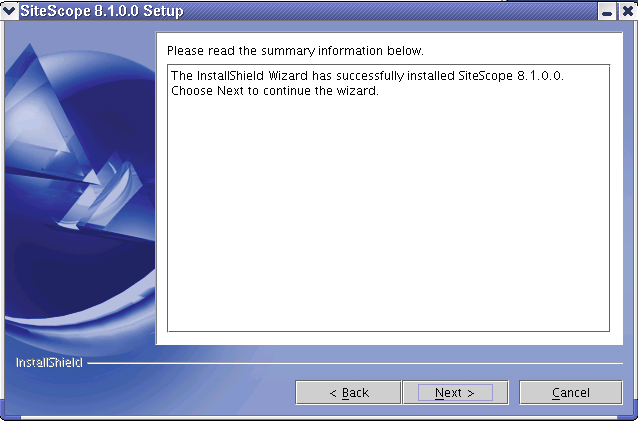
- Click Next to complete the installation process and close the InstallShield wizard. To deploy SiteScope, follow the steps in the section Connecting to SiteScope.
- For the latest available functionality, download the latest service pack from the same location from which you installed SiteScope. Install the service pack into the same directory as SiteScope.
gzip -dc SiteScope.system.tar.gz | tar xvf -
Replace system with the platform name included as part of the compressed archive filename (the choices are sun or linux). The decompression and archive extraction process are displayed on the standard output.
An example of the extraction command and results is shown in the figure below.
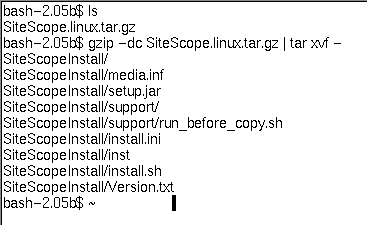
The extraction operation creates a new directory called SiteScopeInstall that contains the files used for the installation.
SiteScopeInstall/inst
The installation executable initializes the InstallShield wizard and the Java Virtual Machine. The InstallShield Welcome window opens.

To install SiteScope, you must accept the terms of the license agreement.
After you install SiteScope, the text of the SiteScope license agreement can be found in the file <SiteScope root folder>/license.html.
Note: Entering an e-mail address at this step is not mandatory for the installation of SiteScope. You can enter this information later using the E-mail Preferences page in SiteScope.
Important: Before installing SiteScope 8.1, you must have SiteScope 8.0 installed. You must install SiteScope 8.1 into the same directory as SiteScope 8.0. If you are installing SiteScope 8.0, you must create a new directory for installation of SiteScope 8.0. Do not install version 8.0 into a directory used for a previous version of SiteScope.
Make a note of the information for connecting to SiteScope. Click Next to continue. The installation completion screen opens.