 Administration > Platform Administration > Alerts Management > Creating Alert Schemes > Configuring Alert Triggers for the Real User Monitor > Transaction Alerts
Transaction Alerts
If you selected to define criteria for a transaction alert, you can select one or more of the following triggers in the Alert Wizard's Trigger Criteria tab:
Note: Transaction alerts will only be sent for transactions that you configure in Monitor Administration.
Transaction Availability
If you select this trigger, Mercury Business Availability Center sends an alert if transaction availability is less than or greater than the specified percentage, calculated over the selected time period.
To send an alert based on transaction availability:
- In the upper box, select Transaction availability. The trigger appears in the lower box.
- In the lower box, click the linked value in the sentence that begins Transaction availability is to configure the trigger. The Transaction Availability dialog box opens.
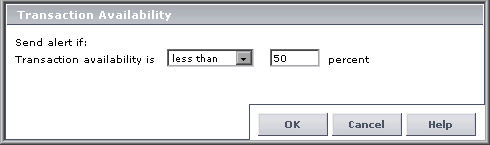
- Select the required criteria. For example, select less than and 50 to instruct Mercury Business Availability Center to send the alert if transaction availability is less than 50 percent, over the calculated time period (which you configure in step 6).
- Click OK to save your settings and close the Transaction Availability dialog box.
- In the lower box, click the linked value in the sentence that begins Calculate over to set the time period over which Mercury Business Availability Center calculates transaction availability. The Calculated Time Period dialog box opens.
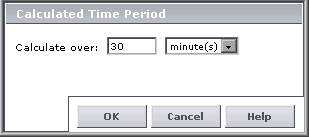
- Specify the required time period. Continuing the example from step 3, select 30 and minute(s) to instruct Mercury Business Availability Center to send the alert if transaction availability is less than 50 percent, over a 30-minute period.
- Click OK to save your settings and close the Calculated Time Period dialog box.
- Select additional triggers, or click the Filters, Actions, or Settings tab to continue creating an alert scheme.
If you select multiple alert triggers, see Selecting Multiple Triggers.
Transaction Performance - Total Response Time for Specified Percentage of Transactions
If you select this trigger, Mercury Business Availability Center sends an alert if total transaction time is greater than or less than the selected number of seconds for no less than the selected percentage of transactions, calculated over the selected time period. You can also set a minimum number of transactions that must run in order for the alert conditions to be calculated.
To send an alert based on total transaction response time performance:
- In the upper box, select Transaction performance - total transaction response time for specified percentage of transactions. The trigger appears in the lower box.
- In the lower box, click the linked value in the sentence that begins Total transaction response time for to configure the trigger. The Total Transaction Response Time Performance dialog box opens.
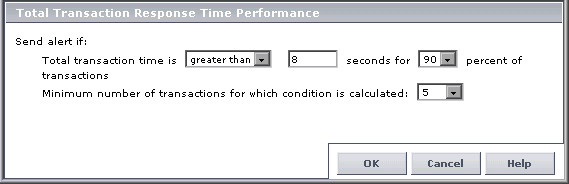
- Select the required criteria. For example, select greater than, enter a value of 8 seconds, and select 90 percent to instruct Mercury Business Availability Center to send the alert if total transaction response time exceeds 8 seconds for at least 90 percent of the transactions that were run, over the calculated time period (which you configure in step 6). Select a minimum number of transactions that must run in order for the alert conditions to be calculated.
- Click OK to save your settings and close the Total Transaction Response Time Performance dialog box.
- In the lower box, click the linked value in the sentence that begins Calculate over to set the time period over which Mercury Business Availability Center calculates total transaction response time performance. The Calculated Time Period dialog box opens.
- Specify the required time period. Continuing the example from step 3, select 30 and minute(s) to instruct Mercury Business Availability Center to send the alert if total transaction response time is greater than 8 seconds for 90 percent of the transactions run, over a 30-minute period.
- Click OK to save your settings and close the Calculated Time Period dialog box.
- Select additional triggers, or click the Filters, Actions, or Settings tab to continue creating an alert scheme.
If you select multiple alert triggers, see Selecting Multiple Triggers.
Transaction Performance - Net Response Time for Specified Percentage of Transactions
If you select this trigger, Mercury Business Availability Center sends an alert if net transaction time is greater than or less than the selected number of seconds for no less than the selected percentage of transactions, calculated over the selected time period. You can also set a minimum number of transactions that must run in order for the alert conditions to be calculated.
To send an alert based on net transaction response time performance:
- In the upper box, select Transaction performance - net transaction response time for specified percentage of transactions. The trigger appears in the lower box.
- In the lower box, click the linked value in the sentence that begins Net transaction response time for to configure the trigger. The Net Transaction Response Time Performance dialog box opens.
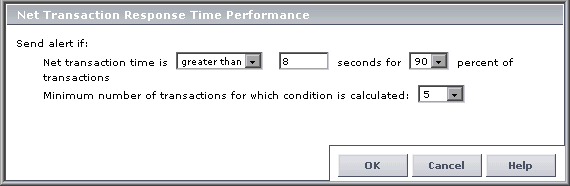
- Select the required criteria. For example, select greater than, enter a value of 8 seconds, and select 90 percent to instruct Mercury Business Availability Center to send the alert if net transaction response time exceeds 8 seconds for at least 90 percent of the transactions that were run, over the calculated time period (which you configure in step 6). Select a minimum number of transactions that must run in order for the alert conditions to be calculated.
- Click OK to save your settings and close the Net Transaction Response Time Performance dialog box.
- In the lower box, click the linked value in the sentence that begins Calculate over to set the time period over which Mercury Business Availability Center calculates net transaction response time performance. The Calculated Time Period dialog box opens.
- Specify the required time period. Continuing the example from step 3, select 30 and minute(s) to instruct Mercury Business Availability Center to send the alert if net transaction response time is greater than 8 seconds for 90 percent of the transactions run, over a 30-minute period.
- Click OK to save your settings and close the Calculated Time Period dialog box.
- Select additional triggers, or click the Filters, Actions, or Settings tab to continue creating an alert scheme.
If you select multiple alert triggers, see Selecting Multiple Triggers.
Transaction Performance - Server Response Time for Specified Percentage of Transactions
If you select this trigger, an alert is sent if transaction server time is greater than or less than the selected number of seconds for no less than the selected percentage of transactions, calculated over the selected time period. You can also set a minimum number of transactions that must run in order for the alert conditions to be calculated.
To send an alert based on transaction server time performance:
- In the upper box, select Transaction performance - server response time for specified percentage of transactions. The trigger appears in the lower box.
- In the lower box, click the linked value in the sentence that begins Server response time for to configure the trigger. The Transaction Server Time Performance dialog box opens.
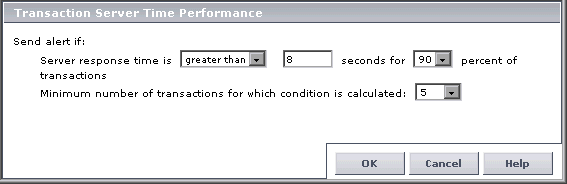
- Select the required criteria. For example, select greater than, enter a value of 8 seconds, and select 90 percent to instruct Mercury Business Availability Center to send the alert if server response time exceeds 8 seconds for at least 90 percent of the transactions that were run, over the calculated time period (which you configure in step 6). Select a minimum number of transactions that must run in order for the alert conditions to be calculated.
- Click OK to save your settings and close the Transaction Server Time Performance dialog box.
- In the lower box, click the linked value in the sentence that begins Calculate over to set the time period over which Mercury Business Availability Center calculates transaction server time performance. The Calculated Time Period dialog box opens.
- Specify the required time period. Continuing the example from step 3, select 30 and minute(s) to instruct Mercury Business Availability Center to send the alert if server response time is greater than 8 seconds for 90 percent of the transactions that were run, over a 30-minute period.
- Click OK to save your settings and close the Calculated Time Period dialog box.
- Select additional triggers, or click the Filters, Actions, or Settings tab to continue creating an alert scheme.
If you select multiple alert triggers, see Selecting Multiple Triggers.
Total Transaction Volume
If you select this trigger, an alert is sent if the number of transaction runs is less than or greater than the specified number, calculated over the selected time period.
To send an alert based on total transaction volume:
- In the upper box, select Total transaction volume. The trigger appears in the lower box.
- In the lower box, click the linked value in the sentence that begins Total volume is to configure the trigger. The Total Transaction Volume dialog box opens.

- Select the required criteria. For example, select less than and 80 to instruct Mercury Business Availability Center to send the alert if there were fewer than 80 transactions run, over the calculated time period (which you configure in step 6).
- Click OK to save your settings and close the Total Transaction Volume dialog box.
- In the lower box, click the linked value in the sentence that begins Calculate over to set the time period over which Mercury Business Availability Center calculates total transaction volume. The Calculated Time Period dialog box opens.
- Specify the required time period. Continuing the example from step 3, select 30 and minute(s) to instruct Mercury Business Availability Center to send the alert if there were fewer than 80 transactions run, over a 30-minute period.
- Click OK to save your settings and close the Calculated Time Period dialog box.
- Select additional triggers, or click the Filters, Actions, or Settings tab to continue creating an alert scheme.
If you select multiple alert triggers, see Selecting Multiple Triggers.
Completed Transaction Volume
If you select this trigger, Mercury Business Availability Center sends an alert if the number of completed transaction runs is less than or greater than the specified number, calculated over the selected time period.
To send an alert based on completed transaction volume:
- In the upper box, select Completed transaction volume. The trigger appears in the lower box.
- In the lower box, click the linked value in the sentence that begins Completed volume is to configure the trigger. The Completed Transaction Volume dialog box opens.
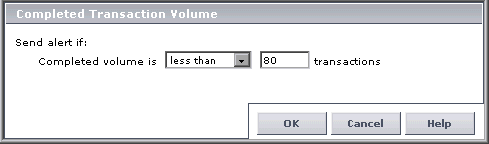
- Select the required criteria. For example, select less than and 80 to instruct Mercury Business Availability Center to send the alert if there were fewer than 80 completed transaction runs, over the calculated time period (which you configure in step 6).
- Click OK to save your settings and close the Completed Transaction Volume dialog box.
- In the lower box, click the linked value in the sentence that begins Calculate over to set the time period over which Mercury Business Availability Center calculates completed transaction volume. The Calculated Time Period dialog box opens.
- Specify the required time period. Continuing the example from step 3, select 30 and minute(s) to instruct Mercury Business Availability Center to send the alert if there were fewer than 80 completed transaction runs, over a 30-minute period.
- Click OK to save your settings and close the Calculated Time Period dialog box.
- Select additional triggers, or click the Filters, Actions, or Settings tab to continue creating an alert scheme.
If you select multiple alert triggers, see Selecting Multiple Triggers.