 Administration > CMDB Administration > Using Discovery Manager > Discovery Manager Administration > Discovery Manager > Managing Modules
Managing Modules
This section contains the following topics:
Editing a Discovery Module
You can edit each module to include the discovery patterns you want it to contain.
To edit a discovery module:
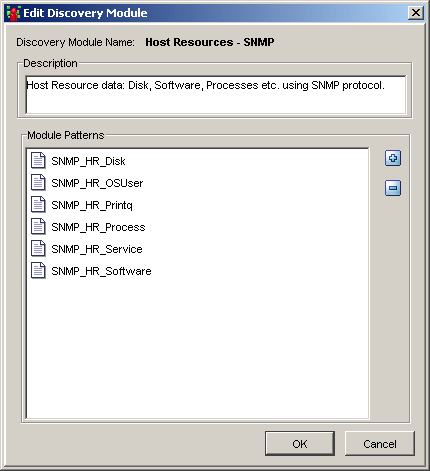
- In the Discovery Modules pane, right-click the module you want to edit and select Edit Module to open the Edit Discovery Module dialog box.
- Click the Add Discovery Pattern to Module button
 to open the Choose Discovery Patterns dialog box.
- Select the pattern(s) you want to add to the module. You can make multiple selections.
- Click OK. The discovery patterns are added to the Module Patterns area in the Edit Discovery Module dialog box.
- Click OK in the Edit Discovery Module dialog box to save the changes you have made.
The Edit Discovery Module dialog box has the following fields:
Description - A description of the selected module.
Module Patterns - A list of the discovery patterns in the selected module.
Activating a Discovery Module
When you activate a discovery module, you activate all the patterns contained in the module.
To activate a discovery module:
In the Discovery Modules pane, right-click the module you want to activate and select Activate, or select the required module and click Activate
 button in the bottom right corner of the Discovery Modules pane.
A module that is activated, as seen here,
 is marked with green dots.
Note: If only some of the module's patterns are activated, the module is marked with a single green dot. If all patterns
 of the module are activated, the module is marked with three green dots.
When the discovery module is activated, it discovers CITs and relationships of the types that are described in each pattern, and places them in the CMDB.
Deactivating a Discovery Module
This section explains how to deactivate a module that is activated.
To deactivate a discovery module:
In the Discovery Modules pane, right-click the module you want to deactivate and select Deactivate, or select the required module and click the Deactivate
 button in the bottom right corner of the Discovery Modules pane.
Creating a Discovery Module
This section describes how to create a discovery module.
To create a discovery module:
- In the Discovery Modules pane, right-click Discovery Modules at the top of the hierarchy.
- Select Create new module. The Choose new name for discovery module dialog box opens.
- Enter a new name for the module.
- Click OK to create the new module. The new discovery module appears in the Discovery Module pane.
- To add discovery patterns to the module, right-click the module and select Edit Module. The Edit Discovery Module opens. For details, see Editing a Discovery Module. After you add one or more discovery patterns to the module, the module then appears in the Discovery Module pane.
Deleting a Discovery Module
This section describes how to delete a discovery module.
Note: Only administrators with an advanced knowledge of how the discovery process works should delete discovery modules.
To delete a discovery module:
In the Discovery Modules pane, right-click the module you want to delete and select Delete.
Updating the Statistics Table for the Selected Discovery Module
The discovery process results in the Statistics table are not automatically updated.
To update the Statistics table:
In the Module Manager tab, click the Refresh Statistics button
 to the left of the Statistics table.
Resetting the Statistics Table for the Selected Discovery Module
You can delete all the statistics from the Statistics table and restart the counting from zero.
To reset the Statistics table:
In the Module Manager tab, click the Reset Statistics button
 to the left of the Statistics table.