Administration > Application Administration > Mercury Business Availability Center for SAP Administration > Administering Mercury Business Availability Center for SAP > Using a Business Process Monitor Profile to Simulate SAP Users > Creating a Business Process Monitor Profile
Creating a Business Process Monitor Profile
You create Business Process profiles in Monitor Administration - for details, see Managing Business Process Profiles and Creating Client Monitor Profiles in End User Management Data Collector Configuration.
This section includes the following topics:
Selecting the Appropriate Protocol
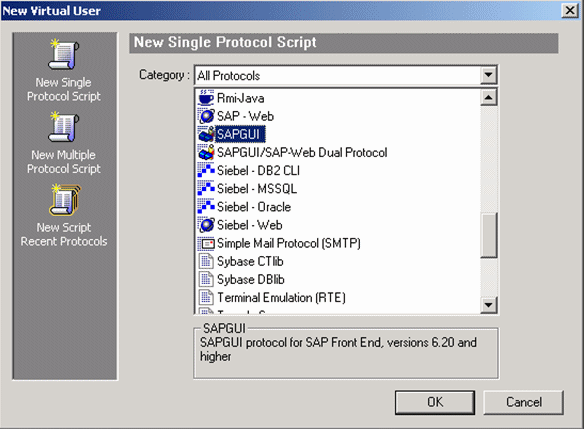
In Mercury Virtual User Generator (VuGen), SAP scripts are recorded using the SAPGUI protocol. You must select the SAPGUI protocol when you create a new script - for details, see Creating New Virtual User Scripts in Using Mercury Virtual User Generator.
To select the appropriate protocol:
Selecting the Appropriate Run-Time Settings
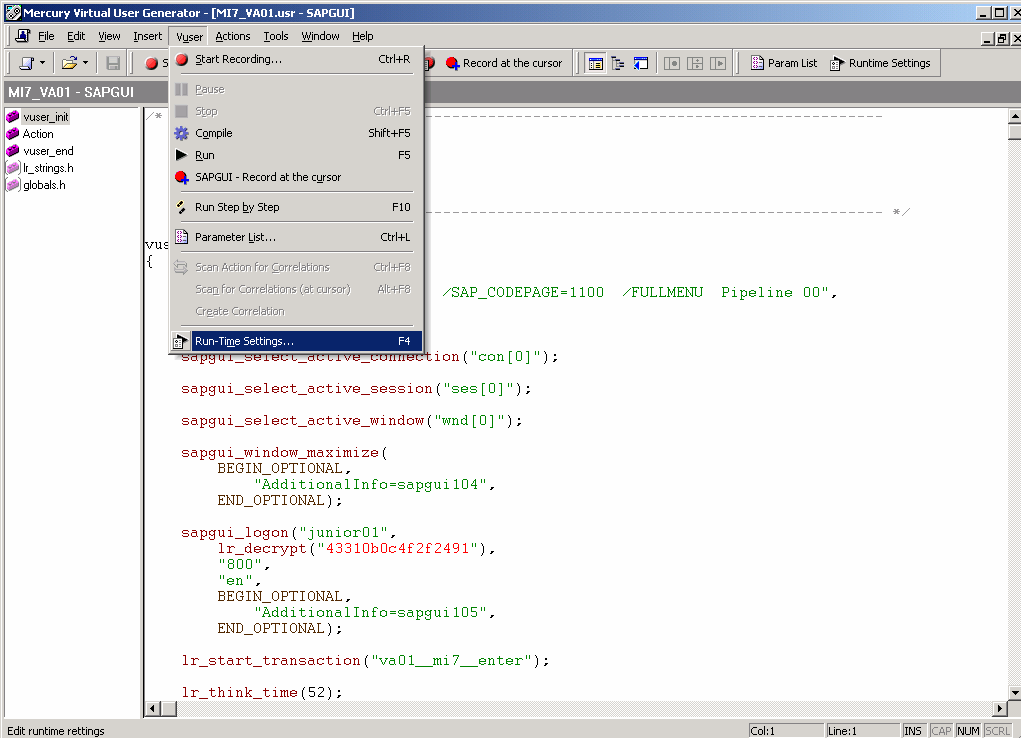
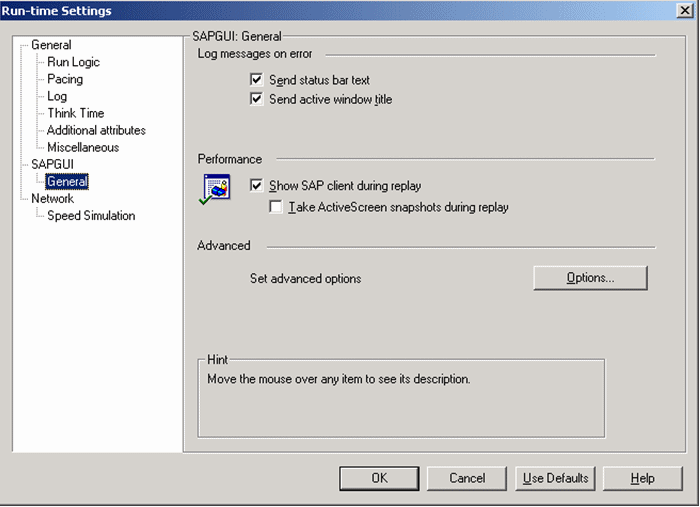
In VuGen, open the Run-Time settings window, and in the Performance area, select Show SAP client during replay to give more accurate user experience times - for details, see Configuring Run-Time Settings in Using Mercury Virtual User Generator.
To select the appropriate run-time settings:
Editing the Script
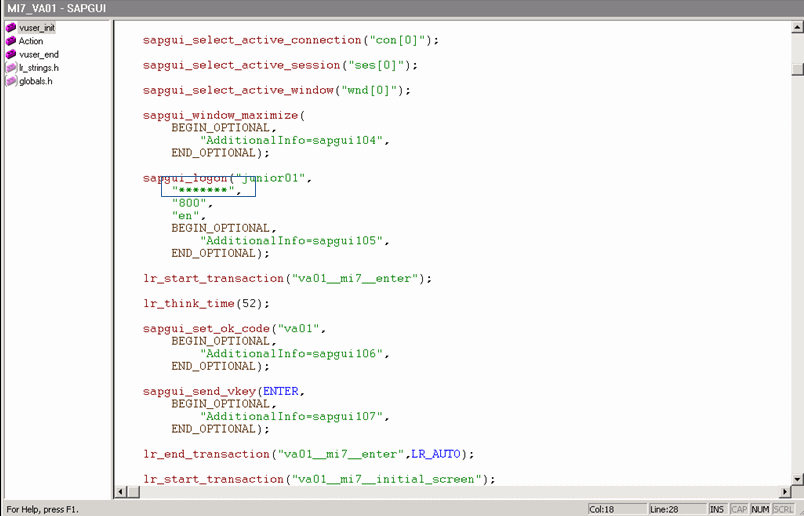
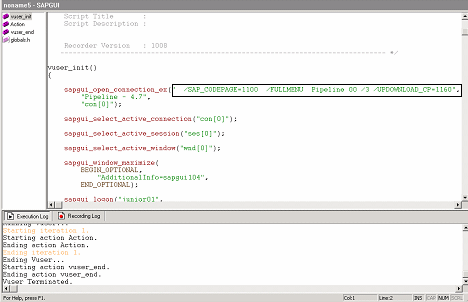
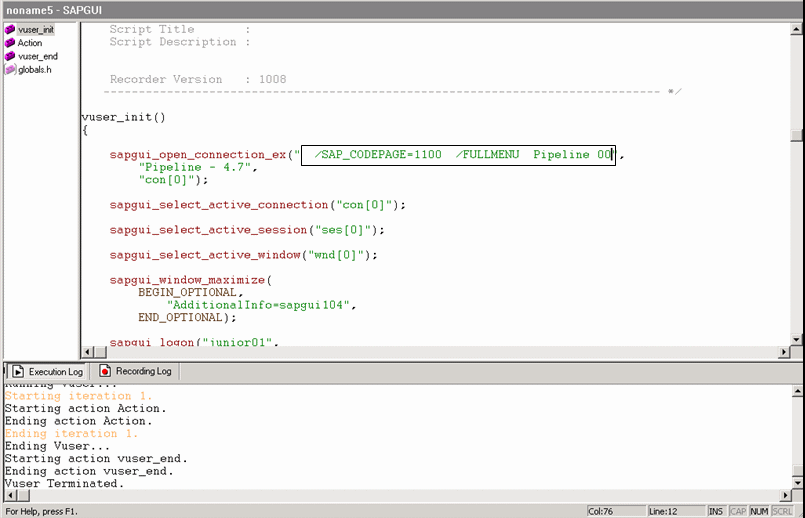
You can edit the script to make sure the password is recorded properly and to check and correct the script's connection parameters.
To edit the script: