 Administration > Application Administration > Dashboard Administration > Configuring the Geographical Map > Working with the Maps Applet Geographical Maps > Modifying the Map Applet Settings
Modifying the Map Applet Settings
To work with the map applet geographical map, you must set the Use Virtual Earth parameter to false - for details, see Selecting the Type of Display Used for Geographical Maps.
You can also modify the refresh rate of the geographical map, and the maximum number of tooltips per location. You can also specify whether you want to display the Export to Google Earth button in the geographical map.
This section includes the following topics:
Specifying the Map Refresh Rate
You can modify the default of the map refresh rate. The default is 30 seconds.
To specify the map refresh rate:
- Select Admin > Platform, click Setup and Maintenance, click Infrastructure Settings.
- Select Dashboard Application in the Applications list.
- Scroll down to the Dashboard Application - Maps Management Properties area.
- Click the Edit button corresponding to the Maps Applet Refresh Rate and enter the new refresh rate.
- Click OK to save the changes.
Specifying the Maximum Number of CIs Displayed in a Location's Tooltip
You can specify the maximum number of CIs that can be displayed in the tooltip for a location in the Geographical Map. The default is 10.
Do not make this value too large, as it represents the number of CIs shown in the Caused by section of the tooltip.
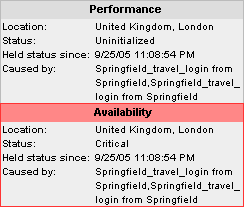
To specify the maximum number of CIs displayed in a location's tooltip:
- Select Admin > Platform, click Setup and Maintenance, click Infrastructure Settings.
- Select Dashboard Application in the Applications list.
- Scroll down to the Dashboard Application - Maps Management Properties area.
- Click the Edit button corresponding to the Maximum CIs in tooltip for location and enter the new maximum.
- Click OK to save the changes.