 Administration > Application Administration > Dashboard Administration > Configuring KPIs > KPIs for User Modes > Setting Up User Mode Functionality
Setting Up User Mode Functionality
You set up user mode functionality in Mercury Business Availability Center by defining the mode for users, defining the KPI versions for each mode, and attaching the KPI versions to the CIs.
Assigning a User Mode
There are two ways to assign a user mode to a user:
- The system administrator, when defining new users in the Admin > Platform > Users and Permissions > User Management page, can set User Mode to Undefined, Operations User, or Business User. By default, all new/existing users are set as Unspecified (meaning that they see KPIs for both modes in Dashboard).
- Users can change their own user mode in the Admin > Personal Settings > General Settings page. In the User Mode area, select the required mode from the Select user mode list.
After changing the mode in the General Settings page, you must log out of Mercury Business Availability Center and log in again to see the mode filtering work.
Defining KPI Versions for the User Modes
The following steps describe how to define different versions of a KPI to use with each user mode.
To define KPI versions for user modes:
- Access the Admin > Dashboard > Repositories > KPIs page.
- Define the business user version of the KPI:
- Define the operations user version of the KPI:
- Override the KPI.
- Open the new version for editing.
- In the KPI Details window, rename the new KPI by adding the suffix "_ops" (for example, Availability_ops).
- Select Operations in the Applicable for User Mode list.
- Edit the details for each KPI version, according to your requirements. For example, you may want different business rules to apply to each version. For more information, see Specifying the KPI Details.
- If you want to use a different version of a business rule with each KPI version, then you must define the rule versions in the Business Rules Repository. For example, for two versions of the Availability KPI, you may require two versions of the Transaction Availability Rule, each with different default objective values.
Note: The overridden version of the KPI replaces the original KPI throughout Dashboard, so all CIs that are assigned the original CI (for example, Availability) are automatically updated to the new version (for example, Availability_ops).
For more information on cloning and overriding KPIs, see KPIs Repository.
For details on defining business rules, see Business Rules Repository.
Attach KPI Versions to CIs
You manually attach the KPI versions to the CIs to which you want them to apply. If the original KPI was already attached to CIs (for example, the Availability KPI is automatically attached to transaction CIs), then the KPI version that overrode the original (for example, Availability_ops) is automatically attached to the CIs instead. You then manually attach the second KPI version (for example, Availability_biz).
To attach the KPI versions to CIs:
- In the Admin > Dashboard > KPIs page, add the KPI versions to each CI where they are required, so that the CIs have both versions of the KPI. You can add the KPI to multiple CIs in one operation. For more information, see Attaching New KPIs to CIs.
- Edit the KPI properties as required in the New KPI/Add KPI to Multiple CIs window. For example, you may want to define different objective values for the KPI.
- For KPIs that require selectors: Do not define anything in the Selector area, leave the selector expressions empty. After you click OK to add the KPI to the CI(s), Mercury Business Availability Center automatically replaces each blank selector with the default selector defined for the other KPIs attached to each CI.
- Click OK to save the KPI details. The KPI version is added to each selected CI, and propagates up the hierarchy to the parent CIs.
Result in Dashboard
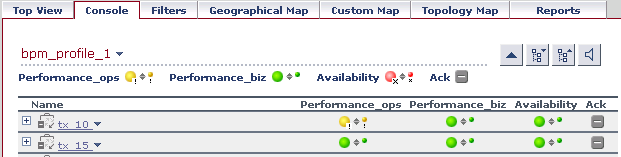
Each user type sees in Dashboard the appropriate KPI version for their assigned user mode (operations or business user), for all KPIs that are defined as specific to a user mode. Users who are not assigned a user mode (undefined) see KPIs for both modes, as do system administrators:
In the Geographical Map and Custom Map tabs, status at a location is based on whichever KPI versions the user sees in Dashboard:

Notes and Limitations
- If the business and operations versions of the KPI are only required for a small proportion of the CIs that use the KPI, then you may prefer to use the following set up:
- If you define different versions of a KPI, and another KPI is dependant on that KPI, then you must also define versions for the dependant KPI.
For example, a CI has attached Availability and OT Impact KPIs, where OT Impact is based on Availability status. If you change Availability to Availability_biz and Availability_ops, then in order to have OT Impact function for both user modes, you must have two versions of the OT Impact KPI defined in the KPI Repository: OT Impact_biz and OT Impact_ops.
In the Admin > Dashboard > KPIs page, both Availability KPI versions and both OT Impact KPI versions must be attached to each applicable CI. Each OT Impact version must have the appropriate KPI ID defined in the StatusDimension parameter.