 Administration > Application Administration > Dashboard Administration > Configuring KPIs > Editing KPI Properties > Editing KPI Properties for Multiple Transactions
Editing KPI Properties for Multiple Transactions
The KPIs tab has a multiple edit function, enabling you to modify the Availability or Performance KPIs for all BPM Transaction from Location CIs in a group. This function enables you to define new business rule parameter values and/or objective values for all child transactions CIs that appear in a subtree of a view, in one operation.
You define the new values in the Edit KPI for Child Transactions window. Every new value you define will replace the previous value for that property, for each transaction CI in the subtree. Property boxes left blank in the Edit KPI for Child Transactions window will not affect the CIs.
Before using the Edit KPIs for Child Transactions function, you should make sure that the planned new values are logical for all transaction CIs in the subtree. You should also review the Notes and Limitations section.
To edit KPI properties for multiple transactions:
- In the KPIs tab, select the required group-level CI in View Explorer.
- Click the Edit KPI for child transactions button corresponding to the KPI (Performance or Availability) that you want to edit.

- The Edit KPI for Child Transactions window displays the KPI, Business Rule Parameters, and Objectives areas. The KPI area contains the names of the KPI and the default monitor business rule for the KPI (these properties are read only).

- Click OK. All transaction CIs in the group are updated with the new defined values.
The Edit KPI for Child Transactions window opens.
In the Business Rule Parameters and Objectives areas, the value boxes are empty. Enter the required values in the boxes, or select a different operator for the objectives. Make sure you enter values that apply logically to all transactions in the group.
For information on rule parameters and possible values, see the section for the relevant rule, as described in Dashboard Business Rules Details.
For information on defining objectives, see KPI Objectives.
Example
The following example describes editing the objective values for transaction CIs in a subtree.
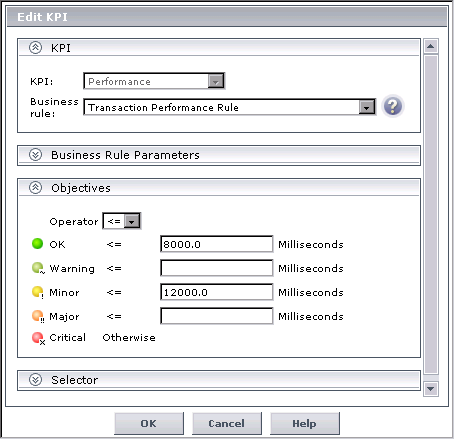
- In the KPIs tab, the Performance KPI objective values for every transaction CI in the myapp subtree are as follows (displayed by clicking the Edit KPI button for any of the transaction CIs):
- In View Explorer, select the parent CI for the subtree—in this case, the Application CI myapp:

- In the right pane, click the Edit KPIs for child transactions button for the required KPI—in this case, the Performance KPI.

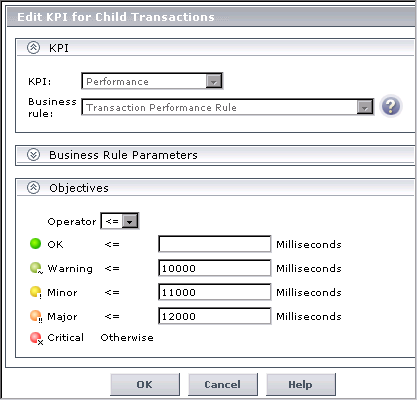
- In the Edit KPI for Child Transactions window, enter the required values—in this case, 10000 for Warning objective, 11000 for Minor objective, and 12000 for Major objective.
- After applying the changes, all transaction CIs in the myapp subtree have the following objective values defined:
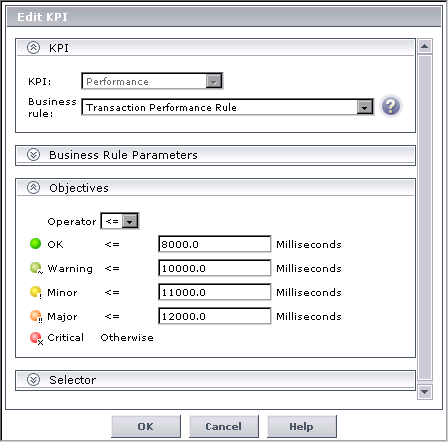
For this example, two additional objective values are added, to include Warning and Major status levels for each transaction CI, and the Minor objective value is modified.
Notes and Limitations
- The Edit KPI for child transactions button is enabled for all KPIs, but:
- the option does not function for KPIs other than Transaction and Availability (an error message is displayed for other KPIs).
- for Transaction and Availability KPIs, the option has validity only when there are Business Process Monitor transaction CIs contained in the subtree.
- After applying the Edit KPI for child transactions option, a KPI was saved successfully message is displayed in the top-right corner of the page, even if no changes were made to any CIs.
- If a transaction CI in the subtree is using a business rule other than the default monitor rule for the KPI (Transaction Availability Rule or Transaction Performance Rule), then when you apply the Edit KPI for child transactions option, the existing rule is replaced with the default rule.
- The Objectives area in the Edit KPIs for Child Transaction window displays the default Operator for the rule. When you apply your changes, the displayed default operator will be updated to all transaction CIs (regardless of which operator they were using previously).
Changes made in the Edit KPIs for Child Transaction window will have no effect on CIs/KPIs for which the option does not apply.